How to use Read Aloud Text
A quick, visual walkthrough of everything in your dashboard — from your first conversion to cloning your own voice and directing a multi-voice conversation. Every screenshot below is the real dashboard.
Before you start
- Sign in and open the dashboard. Everything lives in the left sidebar: Text to Speech, Audio Generations, Voice Cloning and Voice Studio.
- Every voice belongs to a tier — Standard (1 credit/character), Enhanced (3), and Ultra (6). Richer tiers sound more expressive and cost more. You spend from a monthly credit pool — see Pricing.
- The estimated cost and your remaining credits are always shown before you generate — nothing is charged until a conversion succeeds.
Text to Speech
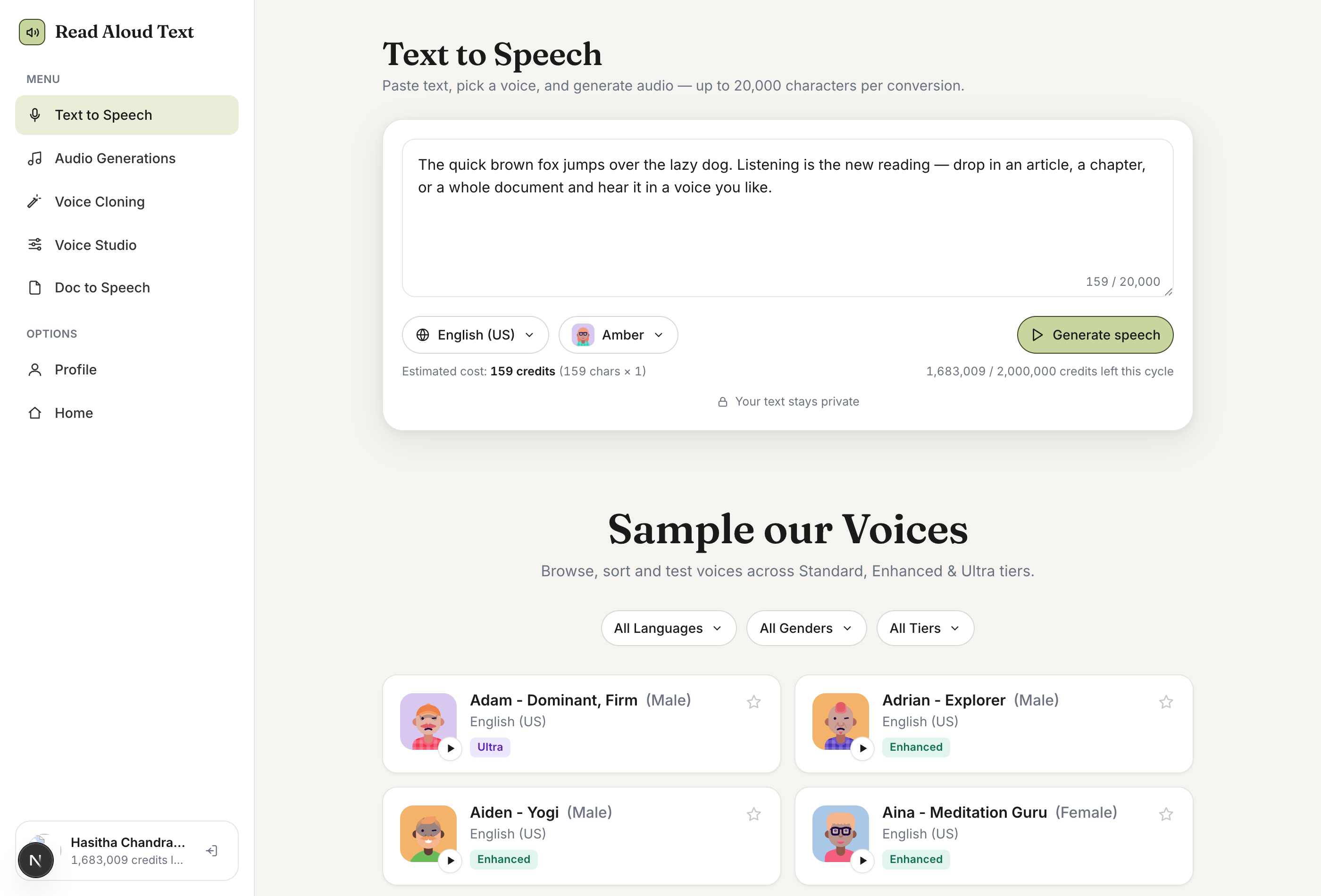
Turn any text into natural-sounding audio — the core of Read Aloud Text. Paste or type up to 20,000 characters, choose a language and voice, and press Generate speech.
- Pick a language, then a voice. Each voice shows its tier so you know the cost. New accounts default to a Standard voice everyone can use.
- Not sure which to choose? Scroll to Sample our Voices and hit the play button on any card to hear a free preview — filter by language, gender, or tier.
- The estimated cost and your remaining monthly credits update as you type.
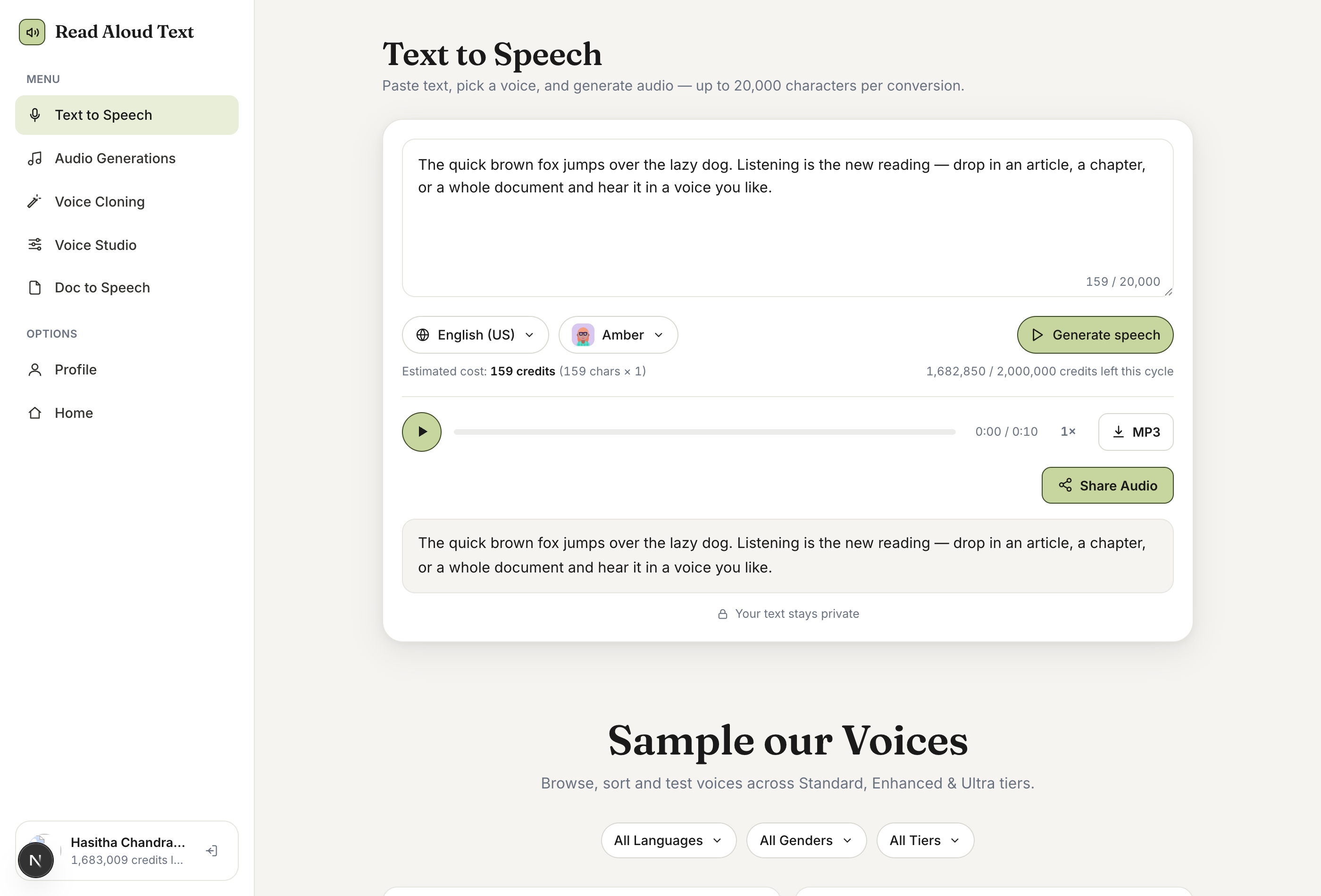
After generating, an audio player appears with your transcript. As it plays, each word is highlighted in time with the speech so you can follow along.
- Play, scrub, and change speed; download the MP3 anytime.
- Press Share Audio to create a public link others can open — no account needed on their end.
- Long texts are split and stitched automatically behind the scenes; a progress bar shows the parts as they render.
Audio Generations
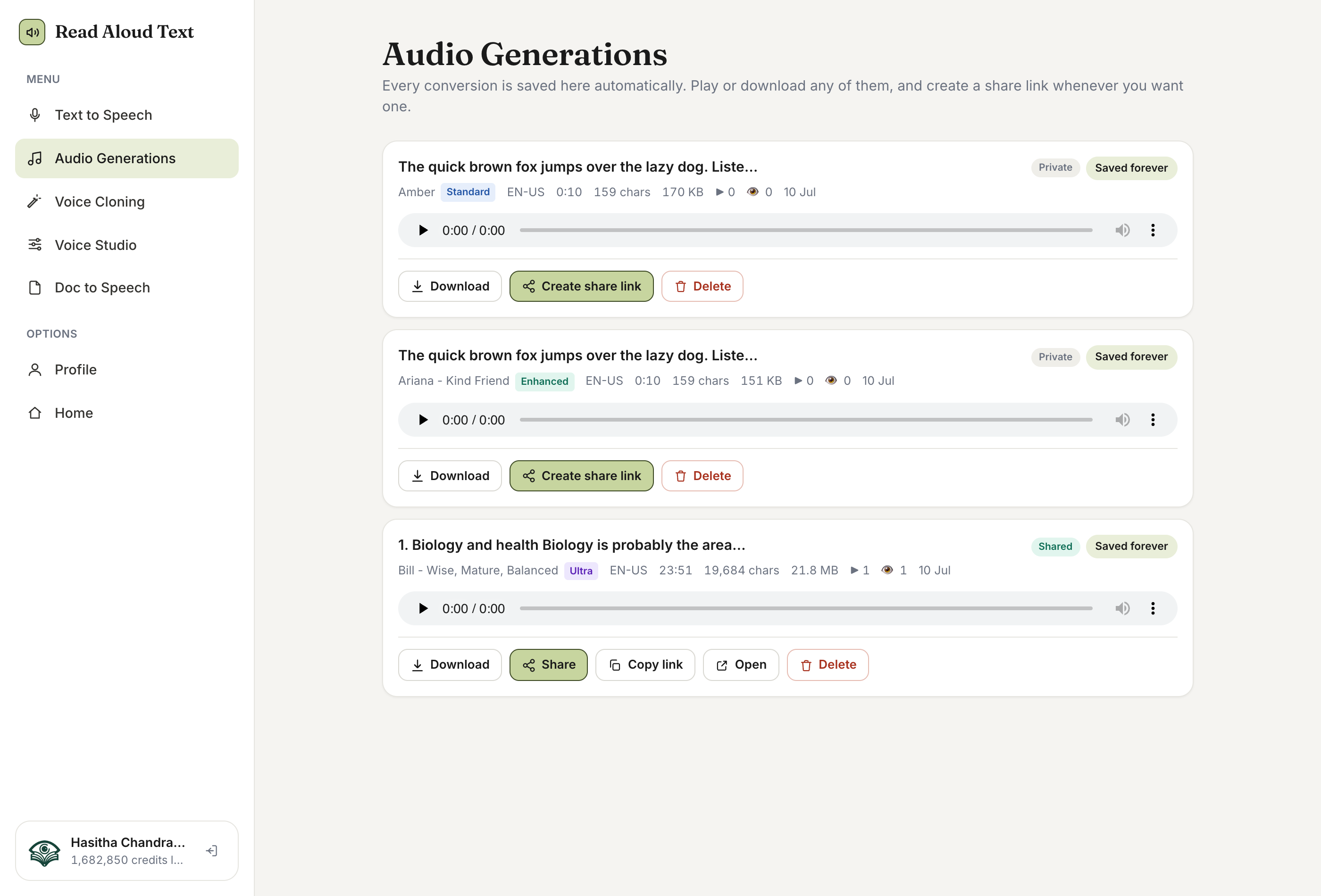
Your library — every conversion is saved here automatically to replay, download, or share. You never have to remember to save — open the Audio Generations tab anytime to find everything you’ve made.
- Each card shows the voice, its tier (Standard, Enhanced, or Ultra), language, duration, character count, and file size. Play or download any of them in place.
- A generation is Private until you share it. Press Create share link to make it public — then you can Share, Copy link, or Open it.
- Retention depends on your plan: Free keeps saved audio and its share links for 72 hours, Lite for 1 month, and Plus and Premium keep it forever — up to a storage cap (2 GB on Plus, 5 GB on Premium). Delete removes the audio and any link for good.
Voice Cloning
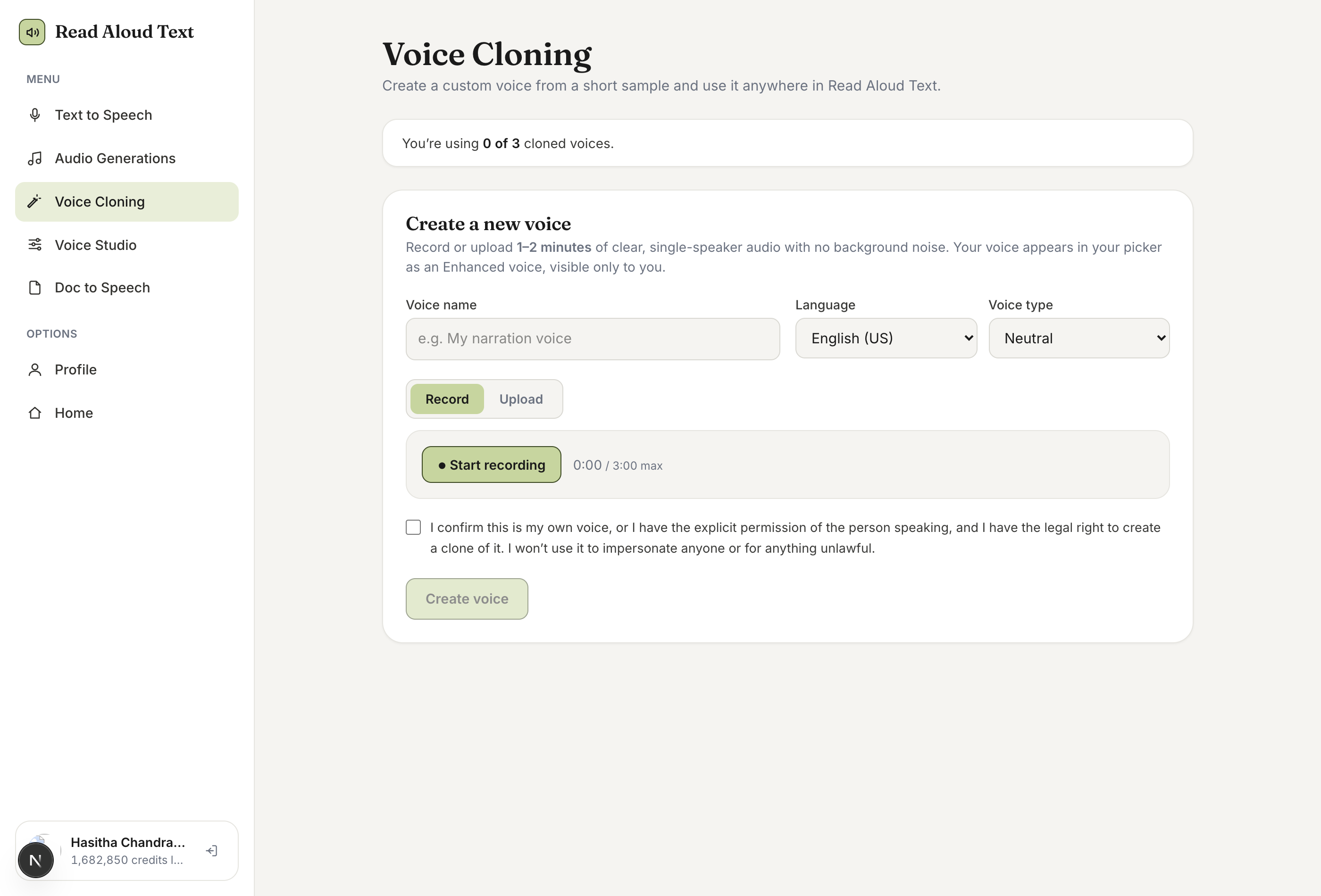
Create a private custom voice from a short recording and use it anywhere. A cloned voice is private to you and appears in your voice picker as an Enhanced voice, ready to use in Text to Speech and Voice Studio. Voice Cloning is available on plans that include cloning slots.
- Give the voice a name, and set its language and type.
- Provide a sample: record in the browser or upload a file. Aim for 1–2 minutes of clear, single-speaker audio with no background noise.
- Tick the consent box — you may only clone your own voice or one you have explicit permission to use — then press Create voice.
- Your slot usage is shown at the top. Delete a voice to free a slot for a new one.
Voice Studio
Combine several voices into one track, or generate a natural back-and-forth conversation. Voice Studio has two modes — pick one with the toggle at the top. Studio pieces are auto-saved to Audio Generations just like any other conversion.
Multi-voice
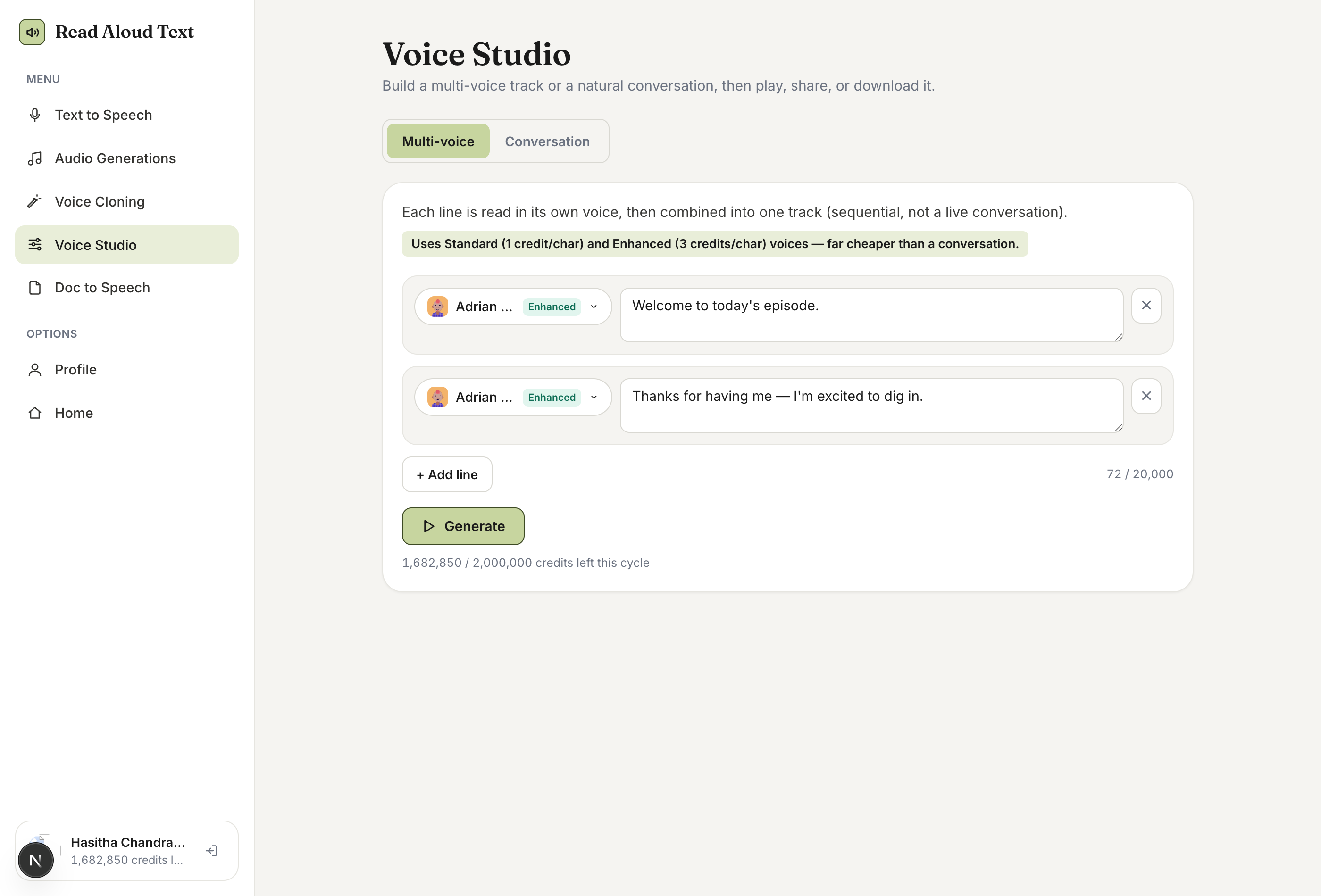
Give each line its own voice; the lines are read in order and combined into a single track. It uses Standard and Enhanced voices, so it’s the budget-friendly way to make narrated dialogue, explainers, or audiobooks with distinct characters.
- Assign a voice per line, type the text, and press + Add line for more.
- Press Generate to build one combined track you can play, share, and download.
Conversation
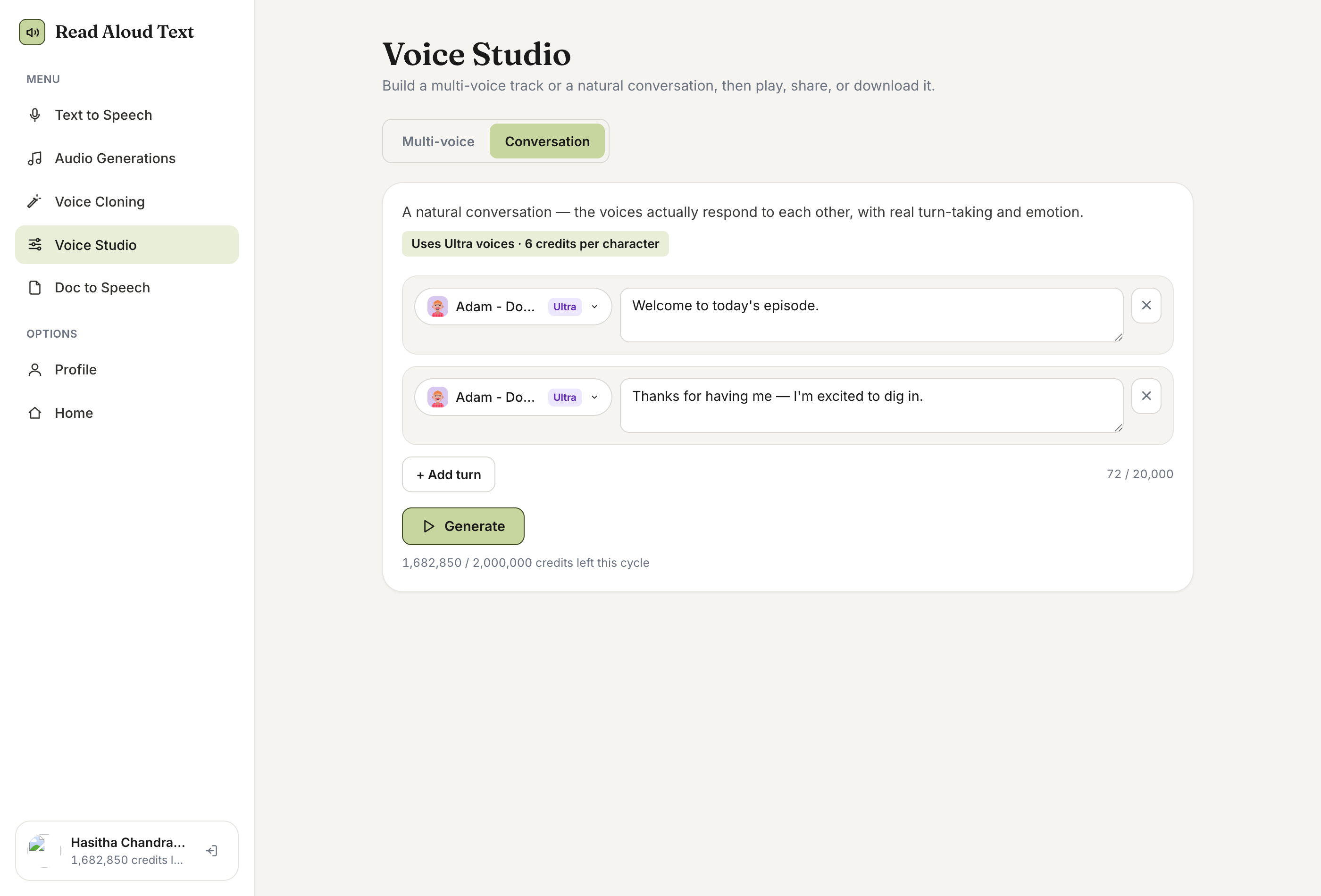
A genuine back-and-forth where the voices respond to each other with real turn-taking and emotion. It uses Ultra voices (6 credits/character) for the most lifelike result — perfect for interviews, podcasts, and dialogues.
- Switch to Conversation, pick an Ultra voice for each turn, and write the exchange.
- Add turns with + Add turn, then Generate — or Regenerate for a fresh take.
You’re ready to go
Open the dashboard and turn your first piece of text into natural-sounding speech — it takes seconds.